Introduction
Débarras draws your disk as an architect's plan. Every file and folder is a plot whose area is its size, so what fills the disk is what you see first.
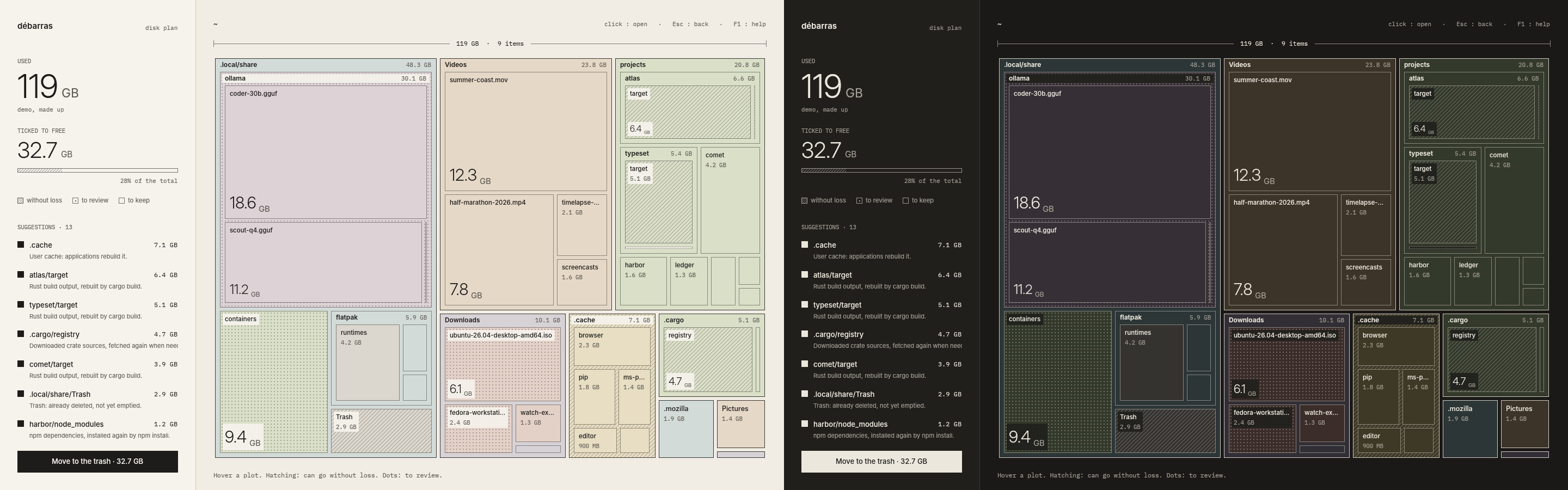
It also tells you what can go:
- Hatching marks what can be freed without loss: build output, caches, the trash. It comes back on its own, or is downloaded again, when needed.
- Dots mark what is large and worth a look: games, local AI models, container images, old disk images. Only you can judge those.
- Plain plots are yours. Débarras says nothing about them.
Débarras never deletes a file on its own. Ticking a plot adds it to a total, so you know what freeing it would give; then a summary lists every item, and you choose to move them to the trash or to delete them for good.
The scan stays on one disk, follows no symbolic link, and sends nothing anywhere. There is no account, no telemetry and no network access.
Next: install Débarras, then take the first steps.
Install
| Your system | How |
|---|---|
| Arch Linux | Prebuilt package |
| macOS 11 or later | Disk image |
| Windows 10 or 11, 64-bit | Installer or zip |
| Ubuntu, Linux Mint, Debian | Build from source |
| Fedora | Build from source |
| Another Linux distribution | Build from source |
Arch, macOS and Windows have a ready-made download. Everywhere else, Débarras is compiled on your machine. The first build takes a few minutes.
Compiling needs a recent stable Rust. If rustc --version shows less than 1.88, install Rust with rustup.
Arch Linux
Every release ships a ready-to-install package. No compiler is needed, and pacman tracks it as debarras.
curl -LO https://github.com/alarboulletmarin/debarras/releases/latest/download/debarras-x86_64.pkg.tar.zst
sudo pacman -U ./debarras-x86_64.pkg.tar.zst
Download the file first, as above. The package is not signed: given a URL, pacman looks for a .sig file and warns when there is none.
To build the latest tagged release yourself, run makepkg -si from the root of the repository.
Débarras is not on the AUR yet.
macOS
Download debarras-macos.dmg. It runs on Apple Silicon and Intel. Open it and drag Débarras to Applications.
The app is not notarized, because that needs a paid Apple Developer account. So macOS blocks the first launch:
- Open System Settings, then Privacy & Security.
- Scroll down and click Open Anyway.
Or run this once in a terminal:
xattr -dr com.apple.quarantine /Applications/Debarras.app
To scan folders such as Documents or Downloads, macOS asks for permission the first time. To scan the whole home folder without a question per folder, give Débarras Full Disk Access in Privacy & Security.
To compile it yourself, you need Xcode (the full app, for the Metal shader compiler) and Rust:
git clone https://github.com/alarboulletmarin/debarras.git
cd debarras
cargo install --path . --locked
This installs the debarras command in ~/.cargo/bin, without the .app bundle. Start it from a terminal.
Windows
Download debarras-windows-x86_64-setup.exe and run it. It installs for your user only, with no administrator rights, and adds a Start menu entry and an uninstaller.
To install nothing, take debarras-windows-x86_64.zip instead. Unzip it anywhere and run debarras.exe.
The files are not signed, because a code-signing certificate costs a few hundred euros a year. SmartScreen may show "Windows protected your PC": click More info, then Run anyway.
To compile it yourself, you need the Visual Studio C++ build tools with the Windows SDK, and Rust with the MSVC toolchain:
git clone https://github.com/alarboulletmarin/debarras.git
cd debarras
cargo install --path . --locked
This installs debarras.exe in %USERPROFILE%\.cargo\bin.
Ubuntu, Linux Mint, Debian
-
Install the build tools and libraries:
sudo apt install build-essential pkg-config libfontconfig-dev libfreetype-dev \ libwayland-dev libxcb1-dev libxkbcommon-dev libxkbcommon-x11-dev libvulkan1 -
Install Rust with rustup. The
cargofrom apt is usually too old. -
Build and install:
git clone https://github.com/alarboulletmarin/debarras.git
cd debarras
make
sudo make install
Fedora
Follow the steps above with these packages. Their names have not been tested.
sudo dnf install gcc pkgconf-pkg-config fontconfig-devel freetype-devel \
  wayland-devel libxcb-devel libxkbcommon-devel libxkbcommon-x11-devel vulkan-loader
Other Linux distributions
You need:
- the development files of fontconfig, freetype, Wayland, libxcb and libxkbcommon (with its X11 part);
- a Vulkan driver for your GPU;
- Rust.
Then:
make                    # cargo build --release --locked
sudo make install       # PREFIX=/usr/local by default, PREFIX=/usr for a system-wide install
make install adds the debarras command, an entry in your application menu, and its icon. sudo make uninstall removes them.
Upgrading
Débarras does not update itself. To upgrade:
| Installed with | Upgrade |
|---|---|
| Arch, prebuilt package | run the two commands of Arch Linux again |
macOS, .dmg | download the new .dmg and drop Débarras on Applications again |
| Windows, installer | run the new installer: it upgrades in place |
Windows, .zip | unzip the new version over the old one |
make install | git pull, then make and sudo make install |
cargo install | git pull, then cargo install --path . --locked |
First steps
The start screen
The first time, Débarras says in three lines what it does (scan, choose, free) and what its two patterns mean, then offers three choices:
- Scan my home folder: the usual place where space goes.
- Choose a folder… (
Ctrl+O,Cmd+Oon macOS): any folder, an external disk, a project. - See the demo: a made-up home folder, to look around without waiting. Nothing on your disk is read.
You can also drop a folder on the window, or name it when you start Débarras from a terminal:
debarras ~/projects     # scan a folder
debarras --demo         # open the demo
debarras --help         # every option
The next times, it opens what you looked at last: the same folder, scanned again, or the demo. A folder gone since then brings back the start screen. To look elsewhere, click Open… at the bottom of the panel (Ctrl+O).
While it scans
The window counts the files and the bytes as they come. Stop (or Esc) cancels and goes back to the start screen.
A folder Débarras cannot read does not stop the scan: it is skipped, and the panel says how many items were unreadable.
Look, open, go back
- Hover a block to see, in the info bar below the plan, its name, size, share of the folder, family, verdict (Safe to remove, Check first, Keep), what freeing it does, and what a click would do.
- Click a folder to open it. The path above the plan shows where you are; click any part of it to go back there, or ← Up to go back one level.
- Go back with
Esc,Backspaceor a right click. - Press
Oto show the hovered item in your file manager.
Choose what goes
The three steps, Scan → Choose → Free, stay at the top of the panel, the current one in ink. Under them, the panel answers first: You can free, the total selected, with a gauge of it (hatched for what is safe to remove, dotted for what to check first). Right after a scan it says how many safe items were selected for you; untick what you keep. The space used comes next.
Click a hatched or dotted block to select it; click it again to unselect it.
The panel has two lists:
- What you can free: every block Débarras marked.
- Selected: everything you selected, wherever it is in the folder. A folder ticked covers what it holds: an item inside it is not counted twice.
Both are trees, largest first: the items are grouped under the folders that hold them, closed, with their size and how many items they hold. Hovering a line outlines its block on the plan. Click a folder's line to open or close it. Its box ticks everything it holds, or unticks it all when everything is ticked; a dash in the box means some of it is. Click an item's line to tick or untick it.
Why?, by the lists, or a click on the legend above the plan, explains how the suggestions are chosen: every rule, and its reason. The rules page lists them too.
Free it
Click Free. A summary gives the total, then the items grouped by verdict, Safe to remove then Check first, each group with its subtotal, every item with its place on the disk and its size. Then choose:
- Move to the trash: the items go to the system's trash, where you can still get them back. The room comes back only once the trash is emptied.
- Delete for good: the room comes back at once. There is no way back.
- Cancel (or
Esc): nothing happens.
The plan follows at once, without a new scan, and the panel says what was freed. An item that could not be freed, because it is gone or you may not delete it, stays selected, and the panel says why.
The trash itself (.local/share/Trash, .Trash) can only be deleted for good: that is how a trash is emptied.
In the demo, freeing only changes the plan: nothing on your disk is touched.
Scan again
After you freed space elsewhere, press F5 (or Ctrl+R) to scan the same folder again.
Reading the plan
The plan is a squarified treemap: each plot's area is its size, and plots are laid out as close to squares as the room allows, the largest first.
Folders
A folder shows its name in a header strip, with its contents drawn inside, up to three levels deep. Click it to open it full size.
Colours
The background colour of a plot tells its family:
| Family | What goes there |
|---|---|
| System | the operating system's own folders |
| Applications | installed apps, Flatpak, Program Files |
| Development | build output, dependencies, toolchains |
| Media | photos, music, videos |
| Documents | Documents, Downloads, PDF, office files |
| Caches | caches that applications rebuild |
| Archives | .zip, .tar.*, .7z, disk images |
| AI models | .gguf, .safetensors, local model folders |
| Other | everything else |
The family is secondary: the info bar names it. They are tints of the current theme, so they stay readable in every theme.
Hatching and dots
- Hatching, Safe to remove: it is rebuilt or downloaded again on its own.
- Dots, Check first: large, for you to judge.
- Plain, Keep: Débarras says nothing about it.
A pattern never goes alone: large blocks carry its word under their name, and the legend above the plan gives each verdict with what it weighs on the disk.
The rules page lists every case and the reason Débarras gives for it.
Small items
Items too small to draw are gathered into one plot, such as 12 others. Files under 1 MB of the same folder are summed into one plot, such as 340 small files. Neither opens: they are there so the total stays honest.
Above and below the plan
Above the plan, the path, the legend, then the dimension line: the size of the folder shown and how many items it holds. Below it, the info bar names the hovered block, its size, its share of the folder, its family and its verdict, says what freeing it does, and what a click would do.
What can go: the rules
Débarras marks a folder or a file only when its name says, without doubt, what it is. It never looks inside files, and it never guesses from a date.
Hatching: can go without loss
| Folder | Why |
|---|---|
node_modules | npm dependencies, installed again by npm install. |
target (not at the root of the scan) | Rust build output, rebuilt by cargo build. |
__pycache__, .pytest_cache, .mypy_cache, .ruff_cache | Python cache, rebuilt on its own. |
.gradle | Gradle cache, downloaded again by the next build. |
.next, .turbo, .svelte-kit, .parcel-cache | Web build cache, rebuilt by the next build. |
.cargo/registry | Downloaded crate sources, fetched again when needed. |
.npm | npm download cache, filled again when needed. |
Xcode/DerivedData | Xcode build output, rebuilt by the next build. |
.cache | User cache: applications rebuild it. |
Library/Caches | macOS caches: applications rebuild them. |
Local/Temp | Windows temporary files. |
.Trash, Trash, $Recycle.Bin | Trash: already deleted, not yet emptied. |
Dots: to review
| Item | Why |
|---|---|
ollama, lm-studio, huggingface | Local AI models: large and downloadable again, but slow to get back. |
Steam | Installed games: remove those you no longer play. |
docker, containers | Container images and volumes: their prune command frees the unused ones. |
.iso, .img, .dmg files over 500 MB | Disk image over 500 MB: often kept after an install. |
Everything else
Any other plot is left plain. Débarras only gives it a family colour, from its name (Documents, Pictures, Steam…) or its extension (.mp4, .pdf, .zip, .gguf…).
A rule that marks too much is worse than a missing one. To suggest a rule, open an issue with the folder's name, the tool that creates it, and the command that brings it back.
Settings and appearance
Click Settings at the bottom of the panel, or press Ctrl+, (Cmd+, on macOS). Every choice applies at once and is kept for the next launch. Esc, or a click outside them, closes the settings.
Themes
Each theme is shown in its own colours: click one to use it. Like the system follows your system's appearance, light or dark. T also switches to the next theme, without opening the settings.
The two house themes, Débarras Light and Débarras Dark, follow your system's appearance until you choose a theme. The others are: Dracula, One Dark, Gruvbox Dark, Nord, Catppuccin Mocha, Tokyo Night, Rosé Pine, Solarized Dark, Solarized Light, Catppuccin Latte and Gruvbox Light.
Every theme is checked by a test: text reads at a contrast of at least 4.5:1 on every ground, including every family tint, and the hover red stands out at 3:1.
Language
Débarras speaks English and French. Choose English or Français in the settings, or System to follow your system:
- from a terminal, the first of
LC_ALL,LC_MESSAGESandLANGthat is set (fr…gives French); - on macOS and Windows, launched from the Finder or the Start menu, the system's language.
A language chosen in the settings wins over the system's.
The demo's folder names (projects or projets) are made when it opens: they change at the next launch.
The settings file
Débarras writes one small text file, settings, when you change a setting or open a folder:
| System | Folder |
|---|---|
| Linux | $XDG_CONFIG_HOME/debarras, or ~/.config/debarras |
| macOS | ~/Library/Application Support/debarras |
| Windows | %APPDATA%\debarras |
It holds one line per setting:
theme=Nord
language=fr
last=/home/you/projects
| Key | Value |
|---|---|
theme | the name of a theme, as the settings show it; absent: like the system |
language | en or fr; absent: the system's |
last | the folder opened last, or demo; opened again at launch |
An unknown line is ignored, and a missing or empty file means the defaults. Deleting the folder resets Débarras.
Keyboard shortcuts
Every line of the help panel (F1), with the keys of Linux and Windows. On macOS, read Cmd for Ctrl.
The plan
| Keys | Action |
|---|---|
| Click | Open a folder; select or unselect a block that can be freed |
Esc / Backspace | Back to the parent folder (also a right click, the Up button or the path above the plan) |
O | Show the hovered item in the file manager |
| Hatching | Safe to remove: rebuilt or downloaded again on its own |
| Dots | Check first: large, yours to judge |
| Free | Sums up what is selected, then moves it to the trash or deletes it for good |
Folders
| Keys | Action |
|---|---|
Ctrl+O | Choose a folder to scan (a folder dropped on the window too) |
F5 / Ctrl+R | Scan the same folder again |
The app
| Keys | Action |
|---|---|
Ctrl+, | Settings: theme and language (also the button at the bottom of the panel) |
T | Next theme (kept for the next launch) |
F1 | This help |
Ctrl+Q | Quit |
Compatibility
| System | Status |
|---|---|
| Linux, Wayland or X11 | Built and tested by the CI on every change; developed on Arch Linux. |
| macOS 11 or later, Apple Silicon and Intel | Built and tested by the CI; not notarized. |
| Windows 10 or 11, 64-bit | Built and tested by the CI; not signed. |
Débarras draws with the GPU, through Vulkan on Linux and Windows and Metal on macOS. A machine without a working driver cannot open the window: see Troubleshooting.
File systems
- The scan stays on the file system of the folder you chose. Another disk mounted inside it is skipped, so a network share does not get walked by accident.
- Symbolic links are not followed: a link counts for itself, not for what it points to.
- Sizes are the space files take on the disk, not their length. A sparse file counts for what it really uses.
- A file with several hard links counts once, in the folder where the scan meets it first. Package stores (pnpm, uv, Nix…) link the same files into many folders: counting each link would inflate the total.
- The blocks a folder takes for its own list of names are not counted: a few kilobytes per folder.
- On Windows, sizes are file lengths, and a hard-linked file counts once per link.
Troubleshooting
The window does not open (Linux)
Débarras needs a Vulkan driver. Run vulkaninfo --summary (package vulkan-tools): if it lists no device, install the Vulkan driver of your GPU (vulkan-radeon, vulkan-intel, nvidia-utils…). On a machine without a GPU, mesa's software driver (lavapipe) works, slowly.
"Not found" or "Permission denied"
The start screen shows why a folder could not be scanned. A folder that disappeared since the last scan says not found; a folder you may not read says permission denied. Choose another folder or try the demo.
Some items were skipped
The panel says how many items the scan could not read (unreadable), usually system folders that belong to another user. The total does not count them. Scanning as administrator would read them; Débarras does not ask for it, and you do not need it for your own files.
macOS asks for permission folder after folder
Give Débarras Full Disk Access in System Settings, Privacy & Security.
The total differs from my file manager
Débarras counts the space files take on the disk, counts a hard-linked file once, and stays on one file system. A file manager often shows file lengths, may count each hard link, and may count other disks mounted inside the folder. On Linux and macOS, du -sxh should agree with Débarras, give or take a few kilobytes per folder.
An item could not be moved to the trash
The panel says why, after the item's name.
- the system's trash tool is missing (Linux): Débarras uses
gio, part of GLib. Install it (glib2on Arch,libglib2.0-binon Debian and Ubuntu), or delete the item for good. - Trashing on system internal mounts is not supported: the item is on a disk without a trash, such as
/tmp. Delete it for good. - On macOS, the first time, the system asks whether Débarras may control the Finder: the trash goes through it. Answer OK; you can change it later in System Settings, Privacy & Security, Automation.
Débarras opens a folder I no longer want
It opens what you looked at last. Click Open… at the bottom of the panel to choose another folder, or start it with debarras --demo.
The wrong language
See Settings, Language.
Reporting a problem
Open an issue on GitHub with your system, the output of debarras --version, and what you did. Starting Débarras from a terminal shows its error messages.
Performance
Measured on the author's machine (Intel Core i9-13900H, 20 threads, NVMe SSD, Linux, release build).
Start
The window is on screen 35 to 45 ms after launch, its first frame drawn by 100 ms.
On Linux, a machine without an NVIDIA card but with NVIDIA's Vulkan driver installed would wait about 2 s for that driver to give up: Débarras tells the Vulkan loader to skip it. Setting VK_LOADER_DRIVERS_DISABLE yourself overrides this.
The scan
| Folder | Files | On disk | Scan |
|---|---|---|---|
| The author's home folder | 3,381,621 | 487 GB | 0.64 s with the system's caches warm |
Every folder is read by its own task, on all the processor's cores. Right after a restart, when the system has not read the disk yet, the same scan waits for the SSD and takes longer; a spinning disk is much slower.
Files under 1 MB are summed per folder, so the tree Débarras keeps stays small: the suggestions for those 3.4 million files are computed in 40 ms.
The plan under the pointer
Moving the pointer over the plan only moves the red marker and rewrites the title block: the plots are drawn once per folder, theme and window size, then reused.
| Plan | Work per pointer move |
|---|---|
| The demo | 0.8 ms |
| 100,000 folders of ten files | 0.6 ms |
| The demo, drawn on screen by a software GPU (lavapipe) | 1.7 ms per frame |
A screen at 120 Hz leaves 8 ms per frame.
Where the figures come from
The first two rows of the second table, and the scan, come from benchmarks; the last row from the running app. To measure on your machine:
cargo test --release --locked -- --ignored --nocapture bench
DEBARRAS_BENCH_DIR=/some/folder cargo test --release --locked -- --ignored --nocapture bench_scan